
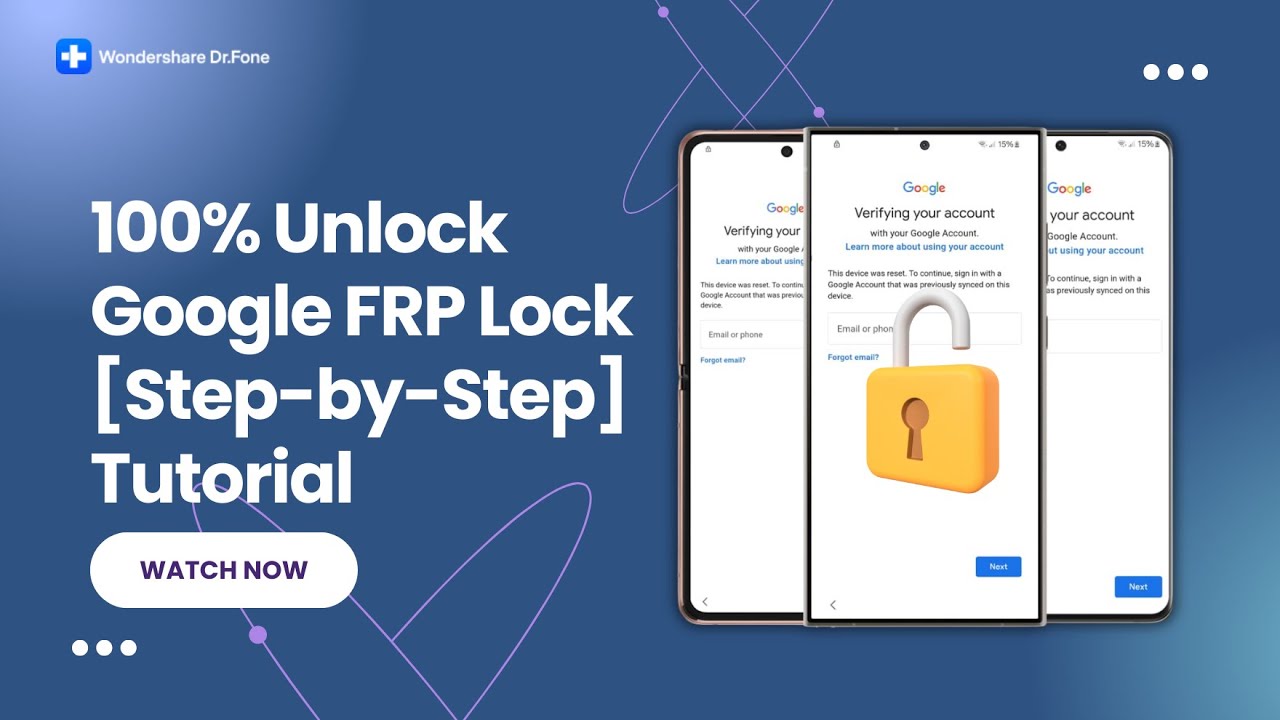
100% Samsung FRP Bypass – Step-by-Step Tutorial for Success!

How to Remove Google FRP Lock: A Step-by-Step Guide
Bypassing the Google FRP (Factory Reset Protection) lock can often be a frustrating process. In this guide, we’ll journey together through the steps necessary to successfully remove this lock using specialized software. We’ll utilize Dr.Fone Screen Unlock, a reliable application designed for this purpose. Let’s dive into the process!
Getting Started with Dr.Fone Screen Unlock
Before we begin, ensure that you have Dr.Fone Screen Unlock downloaded and installed on your computer. This software is user-friendly and versatile, making it suitable for users of all levels of expertise.
Step 1: Open Dr.Fone and Initiate the FRP Unlock Process
- Launch the Dr.Fone application on your computer.
- Click on "Screen Unlock" to access the unlocking features.
- Once in the Screen Unlock menu, select "Remove Google FRP Lock".
Step 2: Prepare Your Device
It’s essential to properly prepare your Android device before connecting it to your computer. Follow these steps:
- Power Off the Device: Ensure that your device is completely turned off. This step is critical to avoid any hiccups during the unlocking process.
- Disconnect from the Computer: Make sure that your device is not connected to the computer at this stage.
Step 3: Inputting the Correct Commands
Now we need to enter a specific combination of buttons to put your device into EDL (Emergency Download Mode):
-
Button Combination:
- Press and hold the Volume Up, Volume Down, and EDL buttons simultaneously.
- Without releasing these buttons, connect your device to the computer using the EDL engineering cable.
- Releasing the Buttons:
- After the device connects, you can let go of the Volume Up and Volume Down buttons.
- This step should be repeated approximately 15 times to ensure that your device properly registers the command.
Step 4: Complete the Connection
Once you have successfully followed the button combination:
- Release the EDL Button: This step completes the EDL command input on your device.
- Select Your Device: The software will prompt you to select your device model from a list. Make sure to choose the correct model for an effective unlocking process.
Step 5: Initiate the FRP Lock Removal
After selecting your device model, click on the "Next" button to proceed.
- The software will now begin the FRP lock removal process. This may take some time, so be patient as your device is unlocked.
Finalizing and Testing
Once the process is complete, you should see a confirmation message. Here’s what to do next:
- Reboot Your Device: Restart your device once you receive the confirmation that the FRP lock was successful.
- Check the Results: Verify that your device is no longer linked to the previous Google account.
Congratulations! You have successfully removed the Google FRP lock from your device.
Troubleshooting Common Issues
While the process is straightforward, you may encounter some issues. Here are a few common problems and their solutions.
Device Not Recognized
If your device isn’t recognized by the software:
- Ensure that the correct drivers are installed on your computer. Reinstalling the software can also fix connection bugs.
- Try using a different USB port or cable.
Stuck at EDL Mode
If your device appears to be stuck in EDL mode:
- Disconnect and reconnect the EDL cable and try the button combination once again.
- Ensure you follow the steps accurately, especially the number of times to press the buttons.
Unlock Process Fails
If the unlocking process fails, consider the following:
- Double-check that you selected the correct device model.
- Restart your computer and try the process again.
Conclusion
By carefully following these steps, you can successfully remove the Google FRP lock from your Android device using Dr.Fone Screen Unlock. Remember to always use caution when performing such operations, as incorrect steps can lead to further complications.
If you find yourself stuck, don’t hesitate to consult the user manual or seek help from online forums and support communities.
Additional Resources
For more in-depth guides on smartphone troubleshooting, consider checking out online resources or forums dedicated to Android devices. Keeping up-to-date with the latest software versions can also help improve the unlocking process.
Final Thoughts
Removing the FRP lock can provide you with back access to your device, allowing you to use it fully after a reset. As technology continues to evolve, always ensure that you’re using the latest methods and software to avoid potential security issues. Happy unlocking!
By following this guide, you can navigate the FRP unlocking process with confidence, freeing your device for personal use. Safe travels on your technical journey!
#Samsung #FRP #Bypass #StepbyStep #Tutorial