How to bypass FRP on Samsung J7 2016 (J710)? Uncover the solution here!
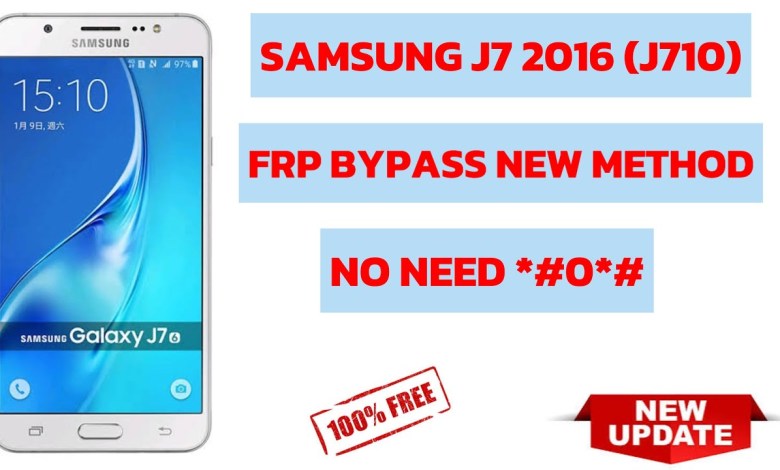
Samsung J7 2016 (J710) frp bypass
Removing FRP Lock on Samsung J7 2016
Hello friend, how are you today? In this article, I will show you how to remove the FRP lock from your Samsung J7 2016, also known as the Samsung J76. This process can be tricky if you do not have the passcode or email associated with the phone, but with the help of a free tool and some patience, we can bypass the FRP lock successfully.
Connecting to Wi-Fi
The first step in removing the FRP lock is to connect your phone to a Wi-Fi network. This will allow us to download the necessary tools and drivers to bypass the lock.
Once your phone is connected to Wi-Fi, proceed to the next step.
Connecting to PC
If you do not have the passcode or email associated with the phone, you can connect your Samsung J7 2016 to your PC to bypass the FRP lock. Make sure to use a free tool that we will mention in the description below.
Once your phone is connected to your PC, open the Android service tool. This tool is free to use and will help us bypass the FRP lock on your phone.
Using the Android Service Tool
Once the Android service tool is open on your PC, follow these steps:
- Click on the FRP bypass option
- Connect your phone to your PC
- Install the necessary drivers for your phone
Do not disconnect your phone from your PC during this process as it may interrupt the installation of drivers.
Installing Drivers
Once you have clicked on the FRP bypass option, you will be prompted to install the necessary drivers for your phone. This process may take a few minutes, so be patient and do not disconnect your phone from your PC.
After the drivers have been successfully installed, launch the browser on the Android service tool to continue the process.







Bypassing the FRP Lock
Once the browser is launched on the Android service tool, you will see a prompt to enter the necessary information to bypass the FRP lock on your Samsung J7 2016. Follow the on-screen instructions to complete the process successfully.
Do not disconnect your phone from your PC during this process as it may interrupt the bypassing of the FRP lock.
Completion
After successfully bypassing the FRP lock on your Samsung J7 2016, you will be able to access your phone without entering the passcode or email associated with it. Congratulations on successfully removing the FRP lock!
Remember to always use caution when bypassing security measures on your phone and only use trusted tools and methods to do so.
Thank you for reading this article on removing the FRP lock on the Samsung J7 2016. If you have any questions or concerns, feel free to leave a comment below.
#Samsung #J710 #frp #bypass