Unlocking Secrets: Samsung Galaxy A05s FRP Bypass on Android 15 – Is It Game Over?

Samsung Galaxy A05s FRP BYPASS Android 15 ( Game over ) All Samsung Galaxy Android 14,15 Frp Unlock
Welcome to the Samsung A05s FRP Removal Guide
Assalamualaikum friends! I hope you are all doing well. Today, we have the Samsung A05s set here. You can check it out. It operates on Android 15 and is currently stuck on FRP ID. I will demonstrate how to remove it completely in this video. Make sure to watch the video step-by-step; if you do, you will understand the process better. Let’s start by taking a look at the device.
Identifying the Lock Status
As you can see, the device is locked. This is a legitimate video, and you need to watch it until the end for a comprehensive understanding. Also, this method can be applied to any Samsung devices. The first step is to check the file version of the device because we need to identify the bit version of the Android running on this device. Let’s check that now.
Getting into Download Mode
When I turn off the device, make sure to connect it to a laptop. As soon as I bring the device into download mode, we’ll see what the bit version is. You can check it yourself; the bit version is S9. Once you’ve confirmed this, we need the files for that specific version.
If your device is running Android 14, you could upgrade it to Android 15 to remove the FRP ID. But this device is already on Android 15. Initially, I will try to downgrade it to Android 14.
Downloading the Required Files
Let me guide you through where to download the necessary files. We’ll switch to the laptop screen. First, open Google and navigate to a specific website. Once you are on this website, type in A05s. After inputting A05s, a list of models will appear.
Checking the Model Number
The model we are dealing with is A05 7F, so make sure to note this down. When you search for it, you will find the resources you need to proceed with the FRP removal.
Preparing Your Laptop
Before proceeding, ensure that your laptop has the necessary drivers installed for Samsung devices. You will generally need the Samsung USB Drivers to establish a proper connection between your device and computer.
Using FRP Bypass Tools
Once your files are downloaded and the drivers are installed, the next step is to utilize FRP bypass tools. There are several available, but I prefer using reliable sources to ensure a smooth process. Make sure you follow the steps carefully to avoid bricking the device.
Step-by-Step FRP Removal
Now, let’s walk through the FRP removal procedure step by step:
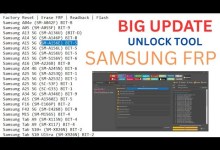



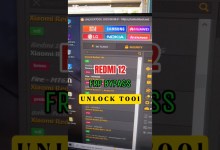




- Make sure your device is fully charged.
- Connect your device to your laptop using a USB cable.
- Open the downloaded FRP tool on your laptop.
- Follow the on-screen instructions to connect the device in download mode.
- Wait for the process to complete; keep an eye on your device’s status.
Verifying the Removal
Once the process is completed, your device should be unlocked. You can verify this by restarting your Samsung A05s and checking if the FRP lock has been successfully removed. If done correctly, you’ll have full access to your phone again.
Troubleshooting Common Issues
If you encounter issues during this process, it could be due to various factors. Here are some common problems and their solutions:
- Device not connecting: Ensure all drivers are installed, and your USB cable is functioning correctly.
- Stuck on FRP screen: Double-check that you’re using the correct bit version files for your device.
- Error messages: Take a note of what the error message says and search for solutions related to that specific error.
Conclusion
Thank you for following along with this Samsung A05s FRP removal guide. Remember that with the right steps and tools, you can successfully remove the FRP lock from your device. If you found this guide helpful, please consider subscribing to my channel for more tech tutorials and tips.
Assalamualaikum and best of luck!
#Samsung #Galaxy #A05s #FRP #BYPASS #Android #Game